Getting Started
Deploy your Palworld server, find your connection details, and join the game.
Updated
Palworld Getting Started
This guide walks you through deploying your Palworld server and connecting for the first time.
Step 1: Deploy Your Server
- Head over to Palworld hosting plans to Build your server.
- Choose your preferred server location.
- Choose your server RAM.
- Click the deploy button to start your server.
Your server will be online in under 60 seconds.
Step 2: Find Your Connection Details
Once your server is deployed, find your IP address and port in the control panel:
- Open your Palworld server in the panel
- Navigate to the Network tab
- Copy the IP:Port shown there

You must use the numeric IP address to connect. Subdomains like palworld.lagless.games will not work for Palworld.
Step 3: Connect in Palworld
- Launch Palworld
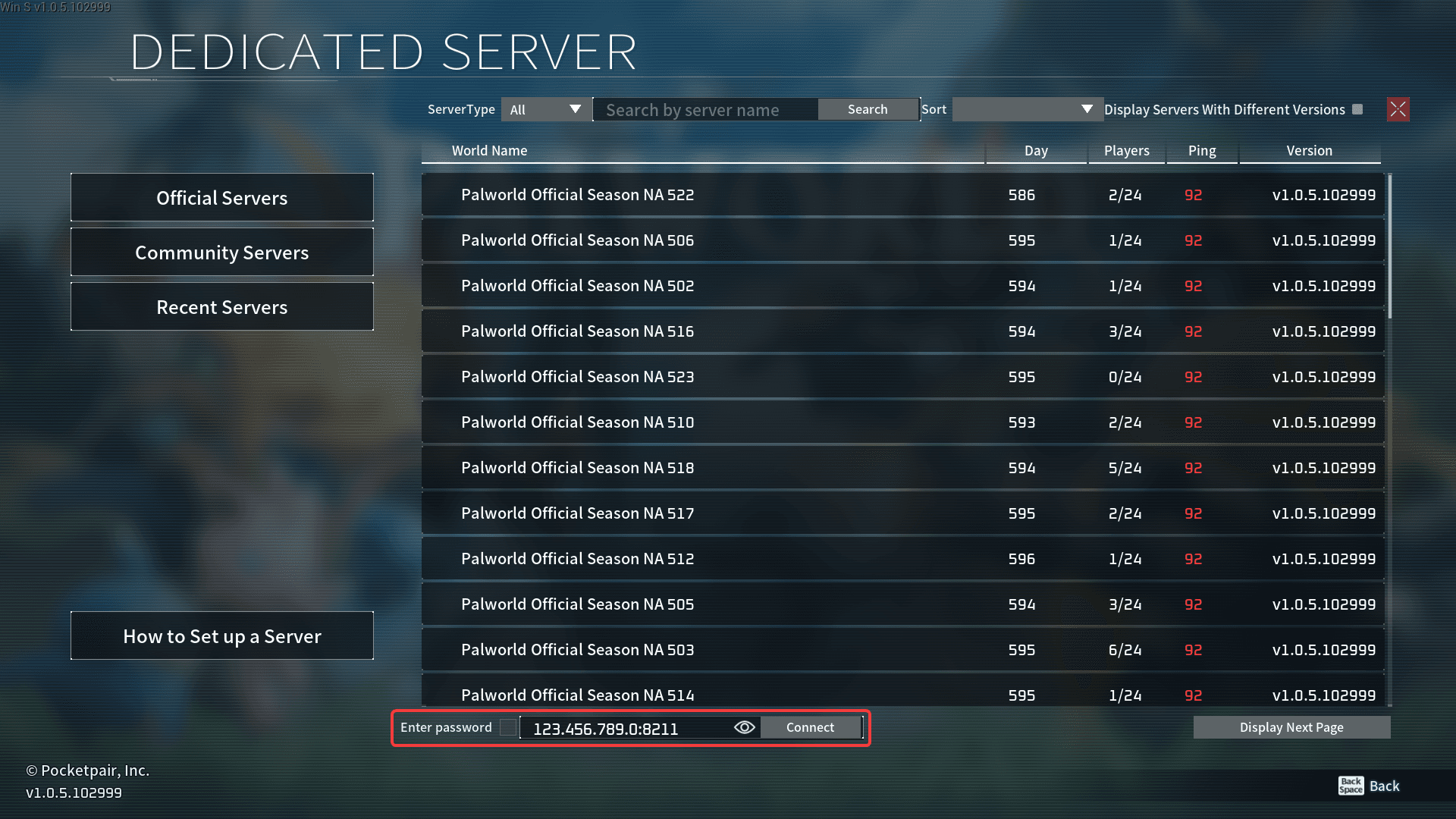
- Click Join Multiplayer Game
- Select the Join via IP option
- Enter your server's IP and port:
123.456.789.0:8211
- Click Connect
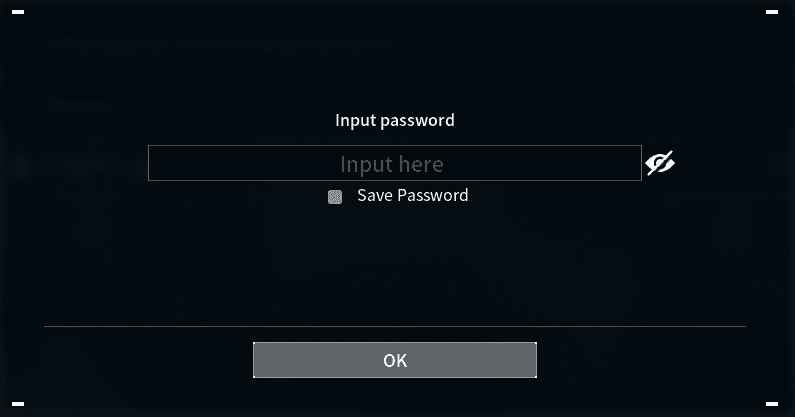
- Enter your server password if prompted
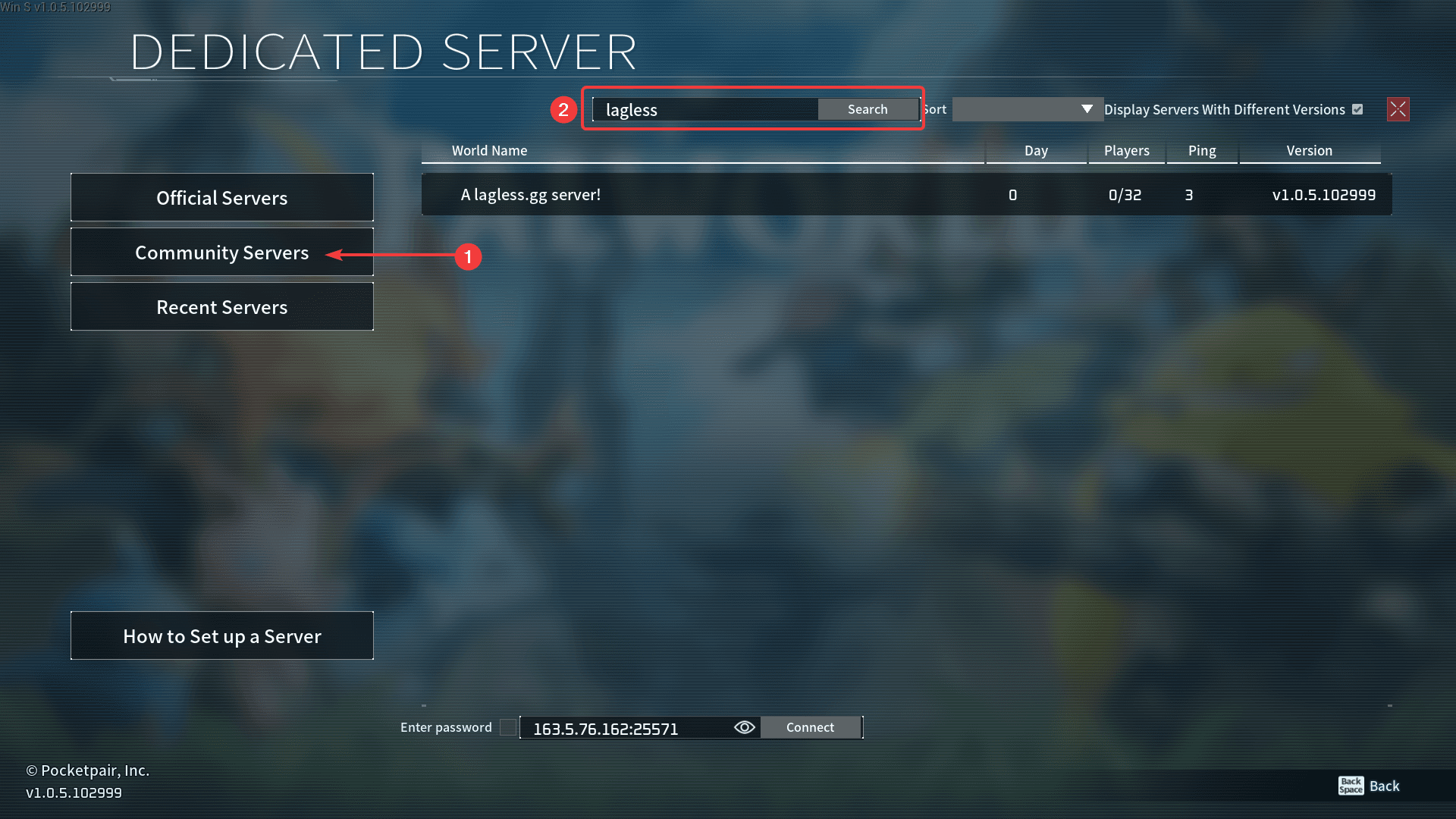
Console players (Xbox, PS5) can only join via the Community Servers list. Direct IP entry is not supported on consoles. Set a servername that is easy to search for in the Community Servers list.
Common Issues
"Failed to connect"
- Verify the IP and port are correct
- Use the numeric IP from the Network tab — not a subdomain
- Confirm the server is running
- Check that the server password is correct
Server not showing in browser
- Use Join via IP instead of searching in the server browser
- Console players must use the Community Servers list
- double check that the server is running and has a unique name
World not generating
- Wait a few minutes, the first join takes longer
- Check that the server has enough storage space
Join from console
- Console players must use the Community Servers list, as direct IP entry is not supported on consoles. Make sure your server has a unique name that is easy to search for in the Community Servers list.