


Databases
Store data for your server that can be shared across multiple servers and sub-servers
Updated
What are Databases?
Databases let you share data between multiple servers or sub-servers. You can create a database to share configurations for Dynmap, LuckPerms, WorldGuard, and more.
Lagless supports three database types:
| Type | Best for |
|---|---|
| MariaDB | MySQL-compatible plugins and mods. The most common choice. |
| PostgreSQL | Advanced features, JSON data, and plugins that specifically require it. |
| Redis | Caching, session storage, and cross-server communication. |
Not sure which to pick? Choose MariaDB if a plugin says "MySQL." Choose PostgreSQL if it explicitly requires Postgres. Choose Redis for caching or cross-server features.
Creating a Database
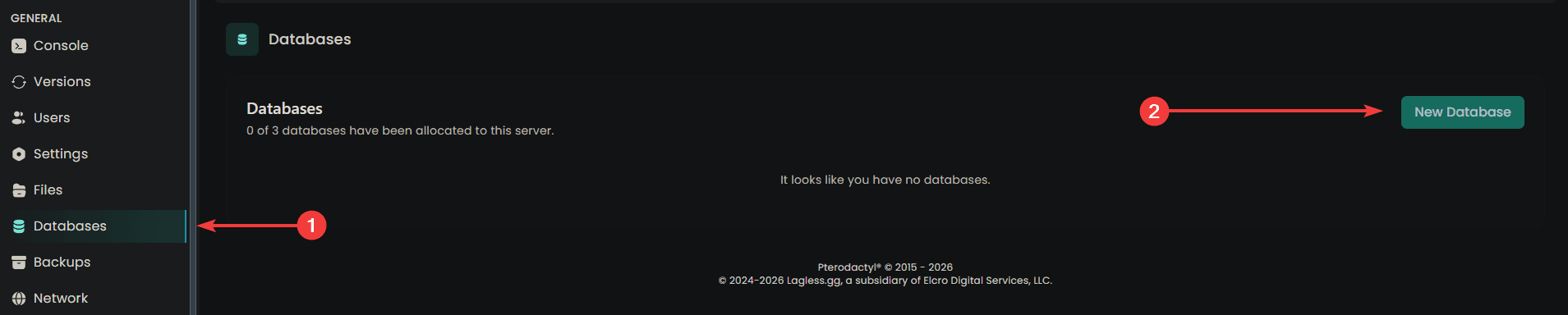
- Open your server in the Lagless panel
- Click Databases on the left sidebar
- Click New Database
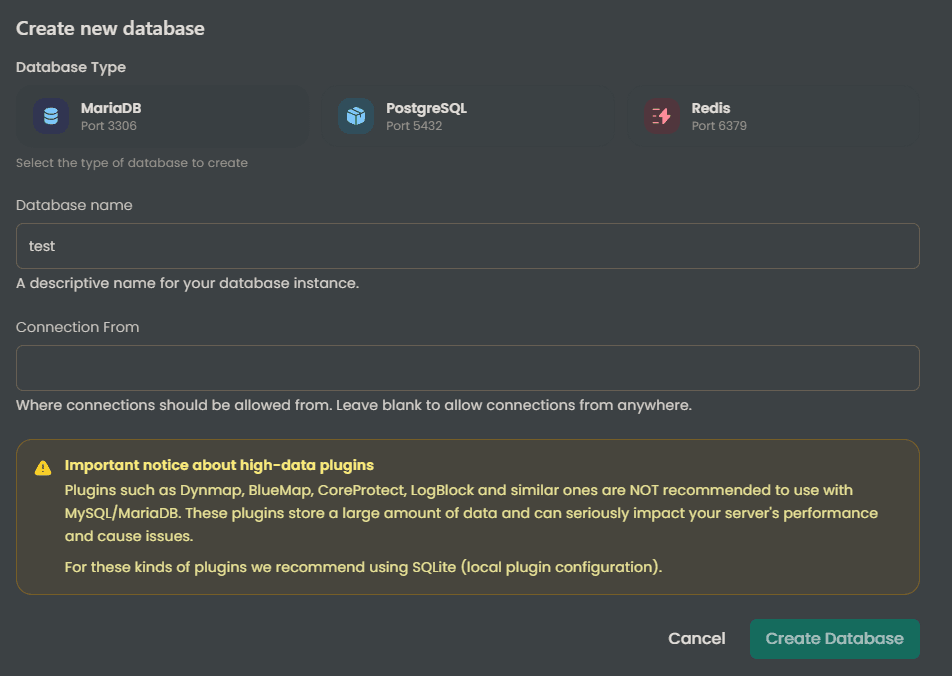
- Fill in the details:
| Field | Description |
|---|---|
| Type | Choose MariaDB, PostgreSQL, or Redis. |
| Name | Must be unique. Prefix with your server name if you have several. |
| Connection From | Optionally limit which IPs can connect. Leave empty to allow all IPs. |
- Click Create Database
Managing Your Database
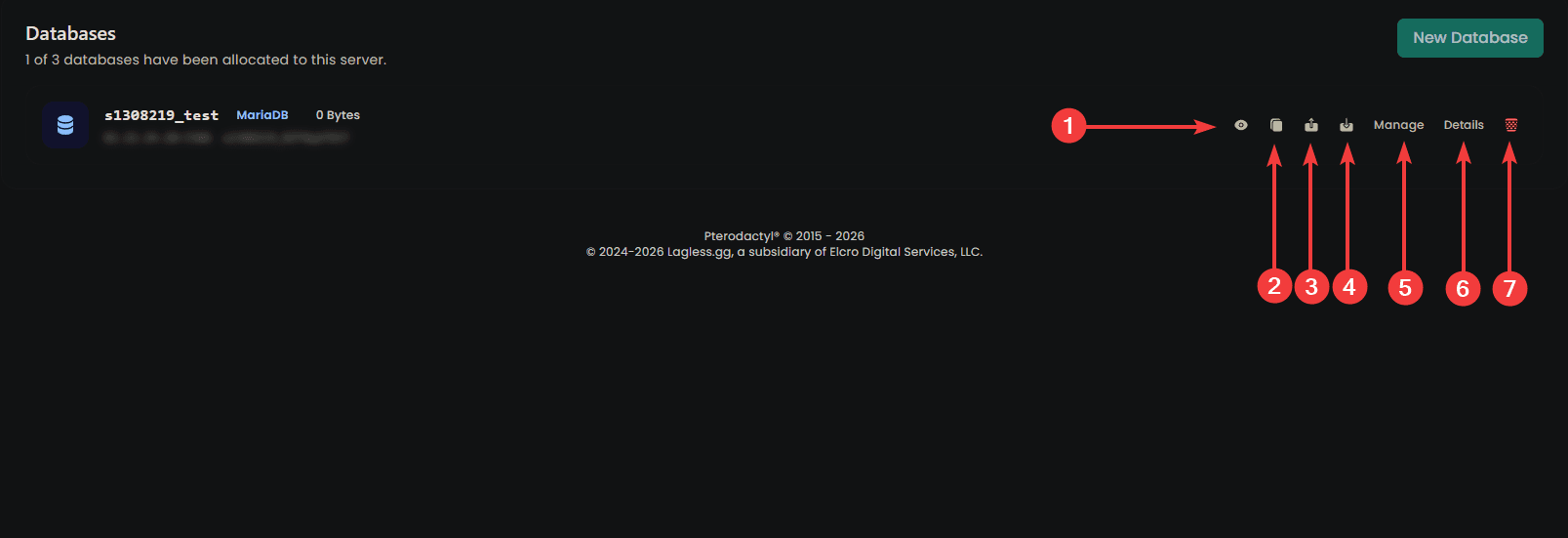
Once created, your database appears in the list. Each row has these actions:
| # | Action | What it does |
|---|---|---|
| 1 | View (eye icon) | Shows the endpoint and username at a glance. |
| 2 | Copy | Copies the connection info to your clipboard. |
| 3 | Details | Opens a popup with the full connection info, JDBC string, and password rotation. |
| 4 | Export | Downloads a dump of your database. |
| 5 | Import | Uploads a dump to restore into your database. |
| 6 | Manage | Opens a limited management view. For full management, use an external client. |
| 7 | Delete | Permanently removes the database and all its data. |
Details Popup
Clicking Details opens a popup with every field you need to connect:
| Field | Description |
|---|---|
| Endpoint | Host and port to connect to. |
| Connection From | Which IPs are allowed to connect. |
| Username | Your database username. |
| Password | Your database password. |
| JDBC String | Ready-to-paste connection string for Java-based plugins (Minecraft, etc.). |
You can also click Rotate Password in this popup to generate a new password.
Rotating the password immediately breaks any active connections. Update your config files and restart your server right after rotating.
Connecting to Your Database
Download a database client to connect and make live changes:
| Database | Recommended Client |
|---|---|
| MariaDB | DBeaver, HeidiSQL, MySQL Workbench |
| PostgreSQL | DBeaver, pgAdmin |
| Redis | RedisInsight, Another Redis Desktop Manager |
Enter the connection details from the panel to connect. All three database types work with DBeaver if you want a single client for everything.
Only connect from the IPs you've allowed in Connection From. If you didn't set any restrictions, you can connect from anywhere.
Common Issues
"Access denied for user"
- Verify the username and password match what's shown in the panel
- Check that your IP is allowed in Connection From
- Rotate the password and try again
Can't connect from outside the panel
- Confirm the database type is correct (MariaDB vs PostgreSQL)
- Check the port — MariaDB and PostgreSQL use different default ports
- Ensure you're using the exact host from the panel, not
localhost
Plugin says "MySQL" but I created PostgreSQL
- Delete the database and recreate it as MariaDB
- MariaDB is MySQL-compatible and works with any plugin that requires MySQL
Data not syncing between servers
- Verify all servers use the exact same connection details
- Check that every server's IP is allowed in Connection From
- Restart the affected servers after updating their config files
Import fails
- Check that the dump file matches the database type (MariaDB dumps don't import into PostgreSQL, etc.)
- Large imports may take a while — wait for the upload to fully complete
- Verify the dump isn't corrupted