


Get Started with the Lagless Panel
Open your game server, find its address, use the console, and manage files.
Updated
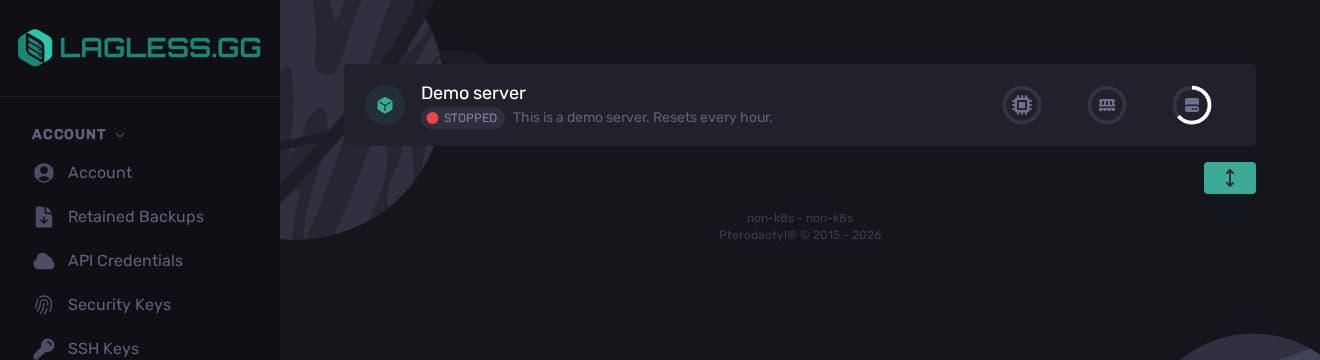
Open your server
- Sign in to the Lagless Panel. To explore with a sample server, use the panel demo.
- Open Servers and select your server card.
- Find your server address, port, and status above the sidebar. Share the address and port shown on your own server with players.
Start the server and read the console
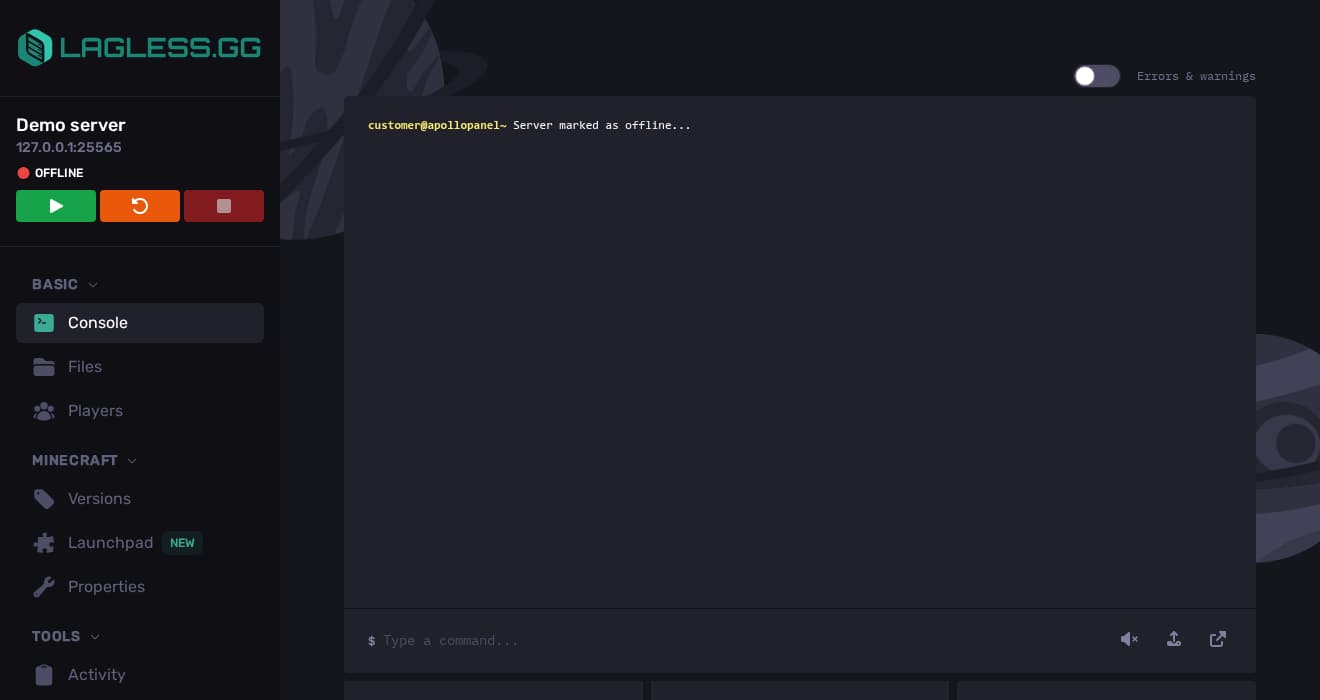
- Open Basic → Console.
- Use the power controls beside the server status to start, stop, or restart the server. Watch the console for startup progress.
- Once the server is running, enter supported server commands in Type a command… and press Enter. If a server fails to start, check the console output for errors before trying again.
Find and edit server files
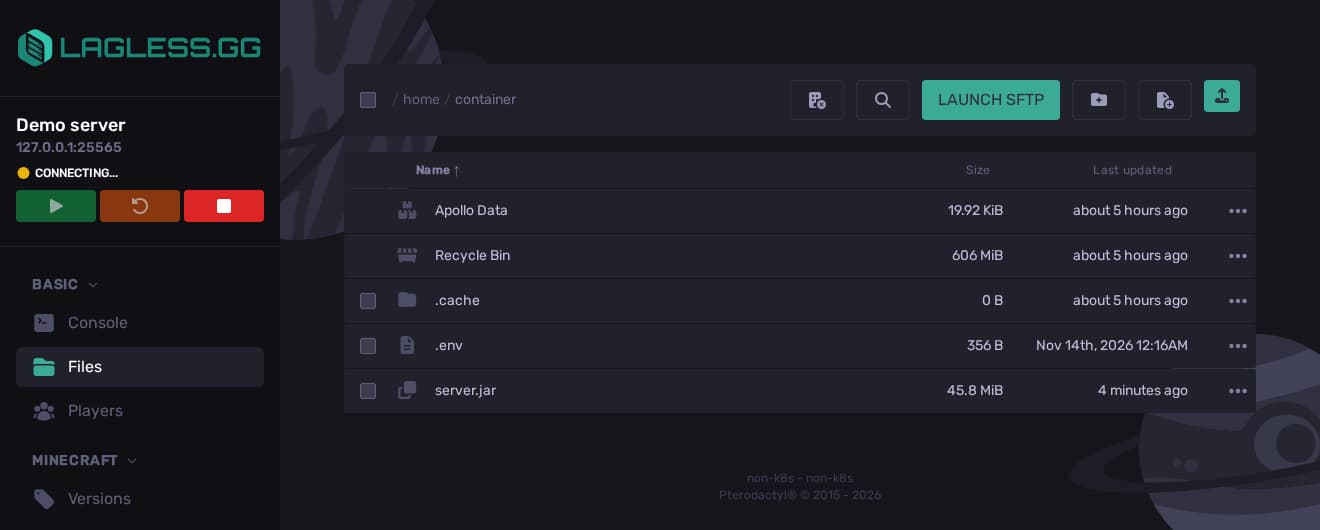
- Open Basic → Files. Select a folder to open it or use the path above the list to go back.
- Select a text file to open it in the editor. Review your changes before saving. Some configuration changes take effect after a restart.
- To upload from your browser, open the destination folder and select the upload icon in the toolbar.
- For transfers outside the browser, select Launch SFTP in the Files toolbar or follow the SFTP guide.
Use Tools in the sidebar for backups, schedules, and subusers.